Wallet for WooCommerce adds a wallet function to your store.
Features
Wallet top-up
Users can top up funds in their wallet and use them for future purchases.
Additionally, you can award Bonus Funds when your users top up funds and meet the configured criteria [i.e. Minimum – Maximum Top Up Amount].
Use wallet rescue
Your users can use their available funds in the wallet using the following 2 ways:
Partial use of i Wallet
Wallet redemption field can be displayed in cart and checkout, using which users can get a discount by applying available funds.
Funds will only be applied to the cart subtotal. Therefore, users must pay the balance using the available payment methods at checkout.
Additionally, it supports manual orders.
ii Wallet Payment Gateway
A separate payment gateway to use wallet funds to place the order.
Can be used for manual orders
Transfer and request of funds
Your users can transfer/request funds to other users on your website. You have the option to charge your users a fund transfer fee.
Withdrawal of portfolio
You can allow your users to withdraw their funds from the wallet by sending a request.
The supported payment methods are,
Bank transfer
PayPal
You have the option to charge a withdrawal fee to your users.
Automatic wallet top-up
Your users can configure it to automatically add funds to their wallets if wallet balances fall below a specified threshold.
Purchase of products
Your users can receive funds in their wallet for purchases on your website. You can set the fund type based on the Product Total/Order Total/Order Total Range.
Additionally, as a site administrator, you can grant product purchase funds for manual orders.
Gift cards
The Gift Voucher module allows you to generate gift vouchers that contain wallet balances. You can issue gift vouchers to your users, and they can redeem the vouchers to add to their wallet balances.
Wallet balance with expiration dates
You can set an expiration date for the user's wallet balance.
Portfolio shares
You can grant wallet balances to your users by the following actions,
Account registration
Daily login
Product review
Email notifications
You can send email notifications to users about wallet activity.
Refunds
As a site administrator, you can send the refund amount for the order (i.e., orders placed via any payment method) to the user's wallet.
Reset
The site administrator can reset the wallet balance and transaction log of its users.
Compatibility
Compatibility given with the plugin “Woo Subscriptions”
Compatibility given with “Carts and Checkout Blocks”
Your customers can plan their purchases and add enough funds to their accounts to complete them later.
Faster checkout
When your users place their orders through their wallet, they can complete their purchase quickly, which reduces cart abandonment.
Insights into future sales
You can get information about upcoming sales on your website based on your users' wallet balance.
How does it work?
Wallet fund top-up
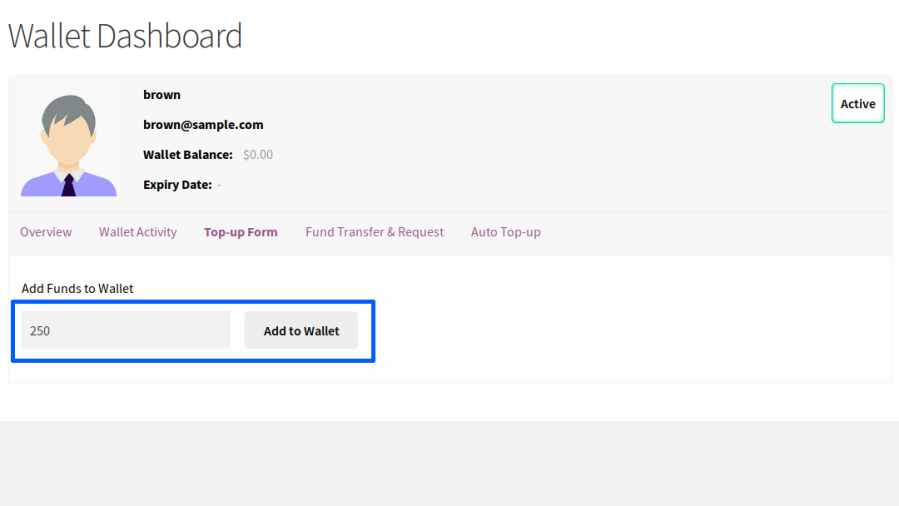
To add funds to the user's account, the user will have to access the top-up form in the wallet dashboard.
Within the section, your users can enter the amount they want to add to their account and proceed to top up.
Adding funds to the wallet
Once the top-up button is clicked, a product will be added to the cart. Once the user completes the purchase and payment is received, the funds will be added to the user's account.
Wallet balance reflected in user account
Wallet funds – partial use
A user adds some products to the cart and wants to use some of the wallet balance on the current order.
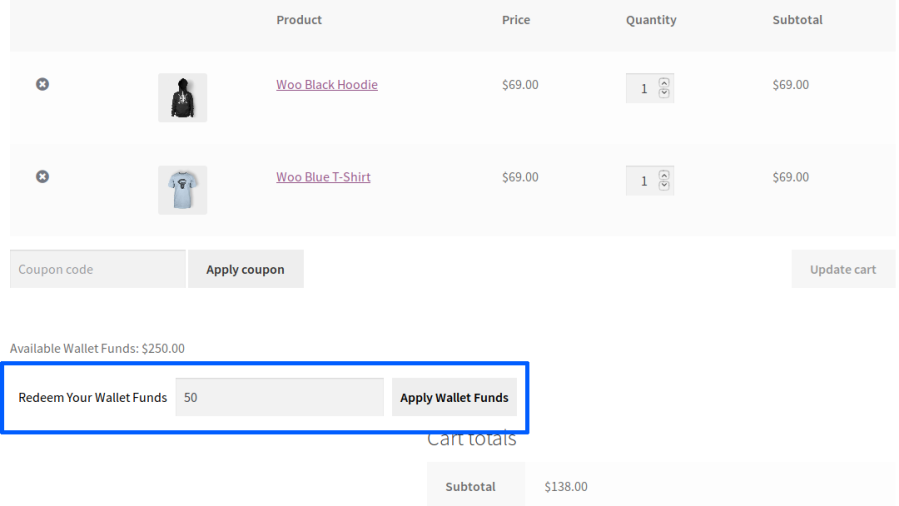
An option to partially redeem your wallet balance will be available in the cart and on the checkout page. The site administrator can restrict partial use of funds based on the order total.
Wallet redemption field on cart page
Users can enter the amount they wish to redeem and redeem it. Once the wallet balance is partially redeemed, the user can use other payment methods on the website and place the order.
Once the order is placed, the balance of the Wallet used will be debited from the user's account.
Wallet Funds – Usage via Payment Gateway
A user adds some products to the cart and proceeds to the checkout page to make a payment.
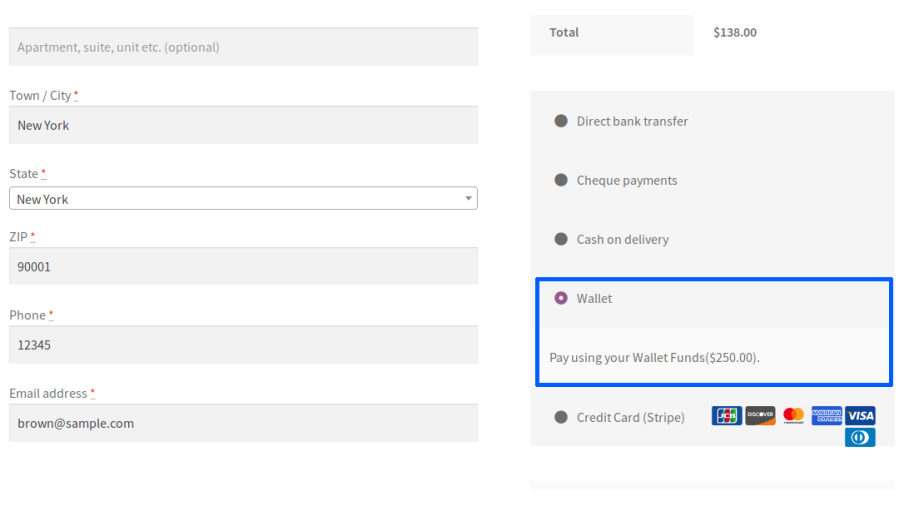
On the checkout page, if the user has sufficient balance in the wallet to place the order, the wallet payment gateway will be visible to the user.
Wallet Payment Gateway
If the user chooses to pay with wallet balance, he will have to select the wallet payment gateway to place the order.
Once the order is placed, the balance of the wallet used will be debited from the user's account.
Wallet fund transfer and request
The Fund Transfer module provides the following features,
Users can transfer their wallet balance to other users on the website (Direct Fund Transfer)
Users can request funds from other users' wallets on the website (Fund Request)
Direct transfer of funds
To transfer funds to another user, the user will need to access the Fund Transfer menu in the wallet dashboard. This can be found under Fund Transfer Details > Fund Transfer.
Once the request form is accessed, the user must search for and identify the user to whom the fund request should be sent.
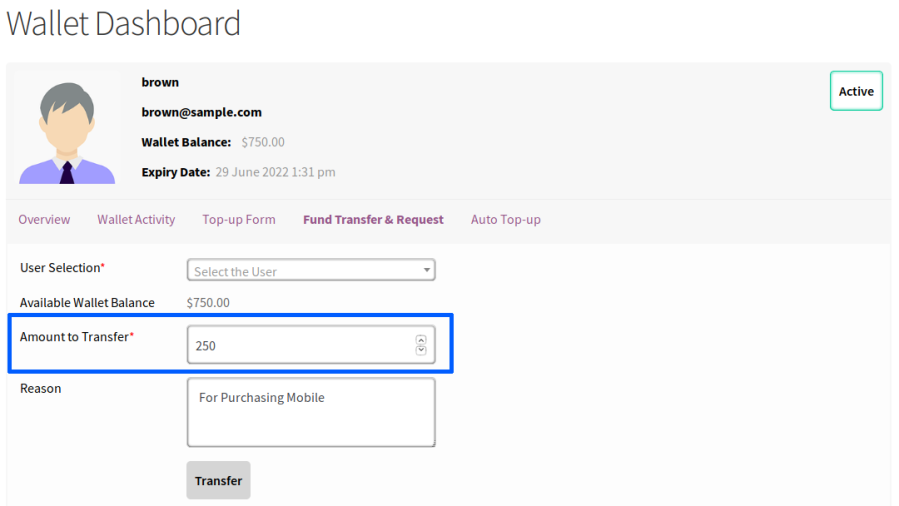
The user will have to fill in the amount to be transferred and submit the form.
Wallet Funds Transfer Form
Optionally, you can enable OTP-based authentication for additional security.
The OTP will be sent via email. When OTP authentication is enabled, the user will need to enter the OTP to complete the fund transfer.
Request for funds
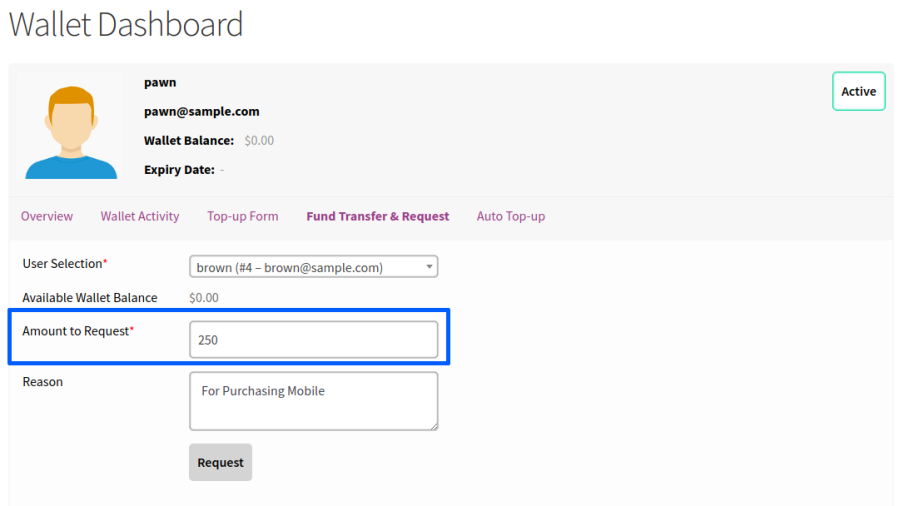
Any user wishing to request funds from their wallet must access the Funds Transfer menu in the wallet dashboard. This can be found under Funds Transfer Details > Funds Transfer.
Once the request form is accessed, the user must search and identify the user from whom the funds will be requested.
The user will have to fill in the required amount and submit the form.
Wallet Funds Request Form
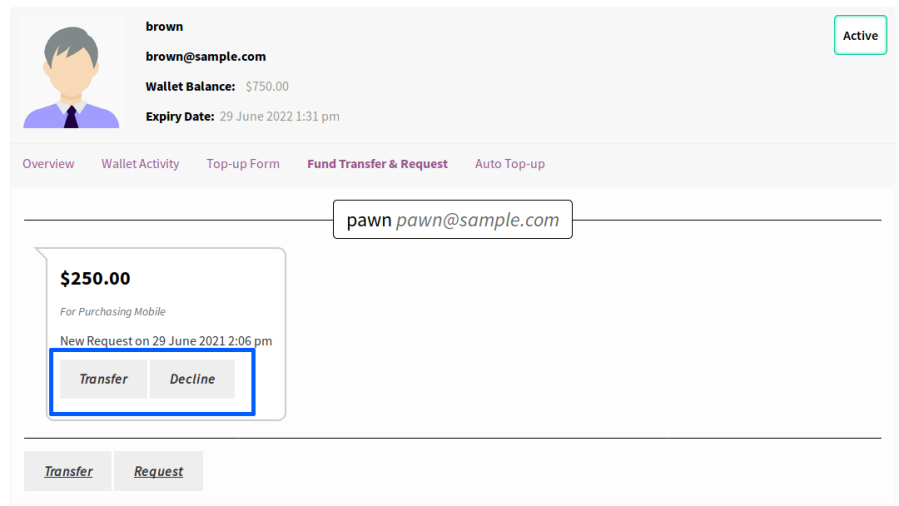
Once the request is sent, the other user will be notified of a new request.
The user can respond to the request directly from their dashboard.
Response to request for funds
If the request is approved, the requested amount will be credited to the user's wallet.
Wallet withdrawal
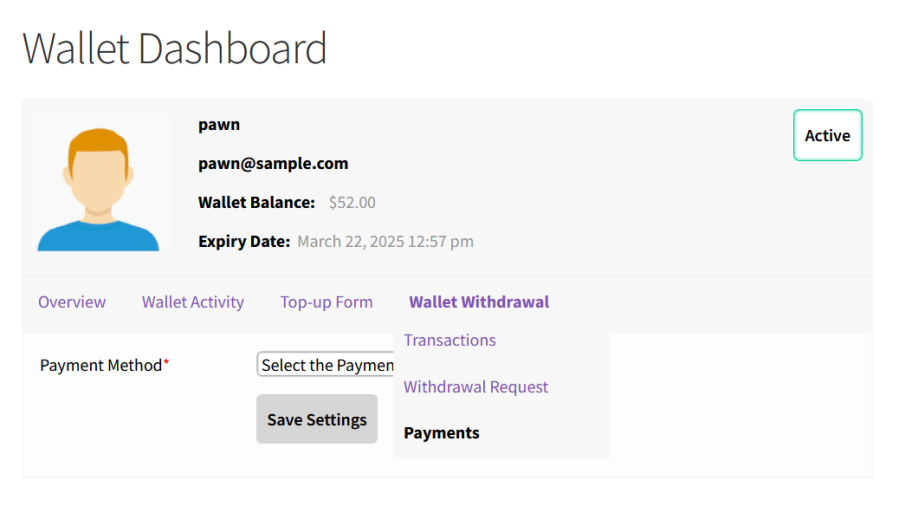
First, users must select the payment method to receive the funds withdrawn from their Wallet Dashboard [Wallet Withdrawal -> Payments].
Wallet withdrawal payment selection
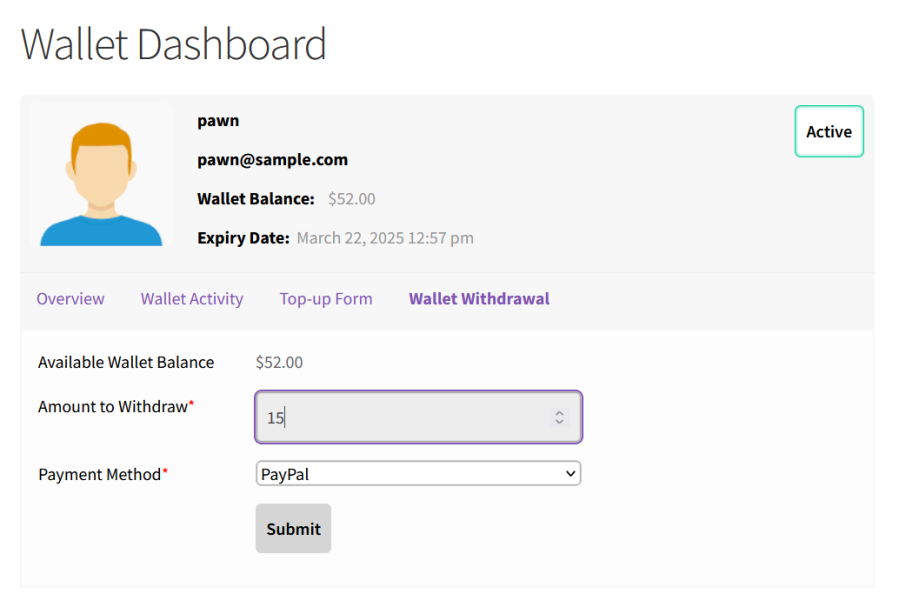
After that, they can submit the withdrawal request [Wallet Withdrawal -> Withdrawal Request], which is a 2-step form. First, they must enter the funds to withdraw and then they need to confirm the details.
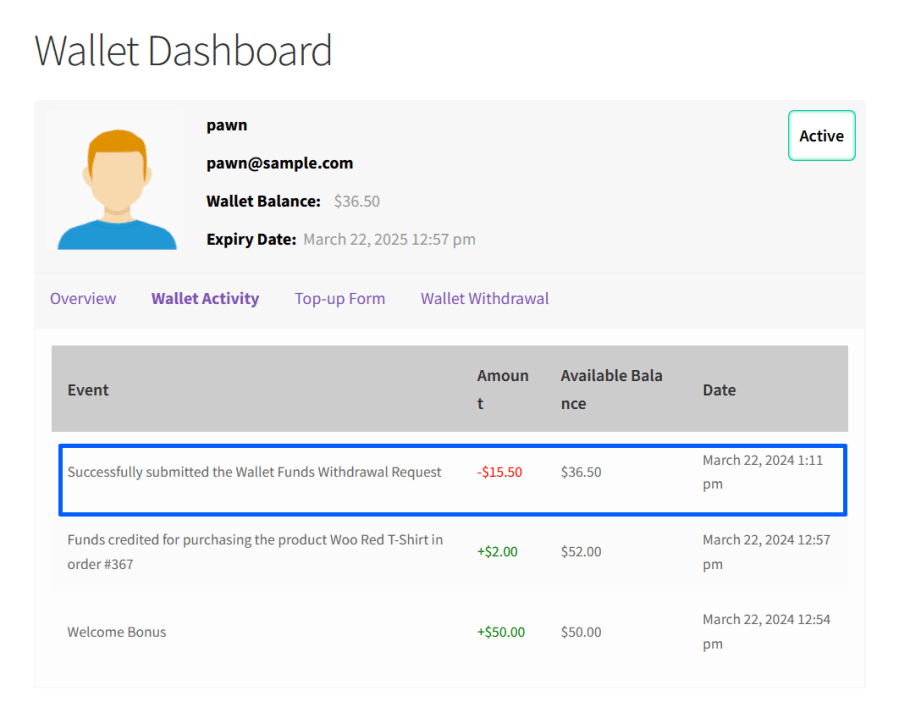
Once the request is successfully submitted, the requested funds will be deducted from the user's wallet.
Wallet withdrawal request sent
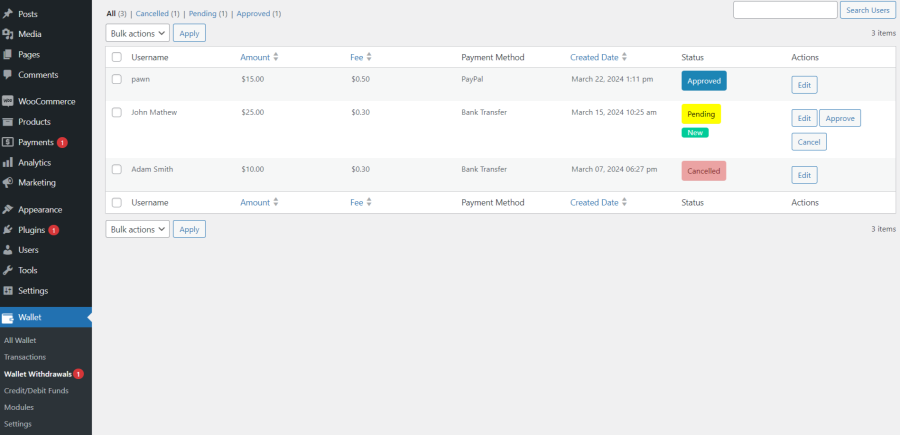
If a user chooses the payment method as Bank transfer, the website administrator will have to manually pay the amount into the user's account using the details provided by them.
If a user chooses the payment method as PayPal [supports payment integration], the requested amount will be transferred to the PayPal ID from the user immediately after administrator approval.
If the administrator rejects the submitted request, the deducted funds will be added back to the user's wallet.
Administrator processing withdrawal requests
Purchase of products
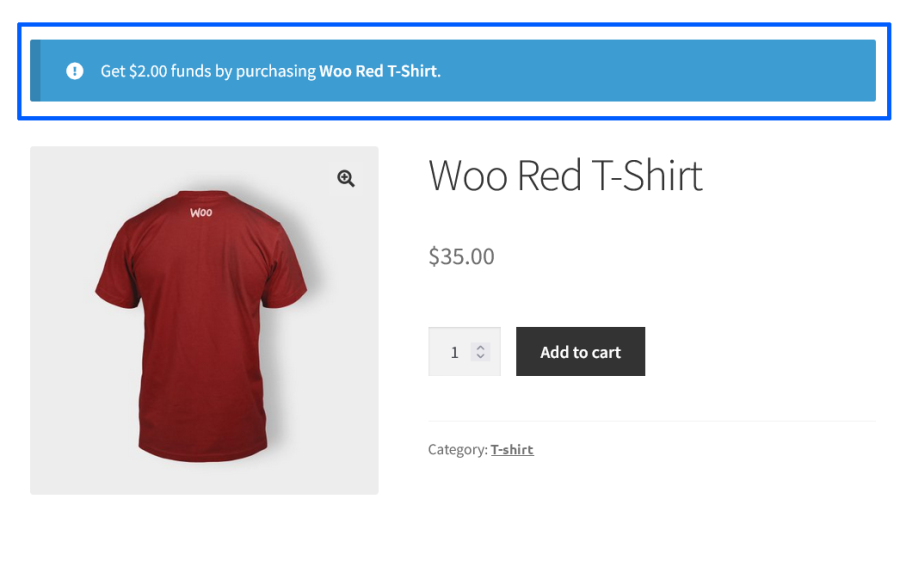
Users can see the funds they will receive for purchasing products on the store page, product page, cart page, and checkout page.
Product Purchase Wallet Reward Notice
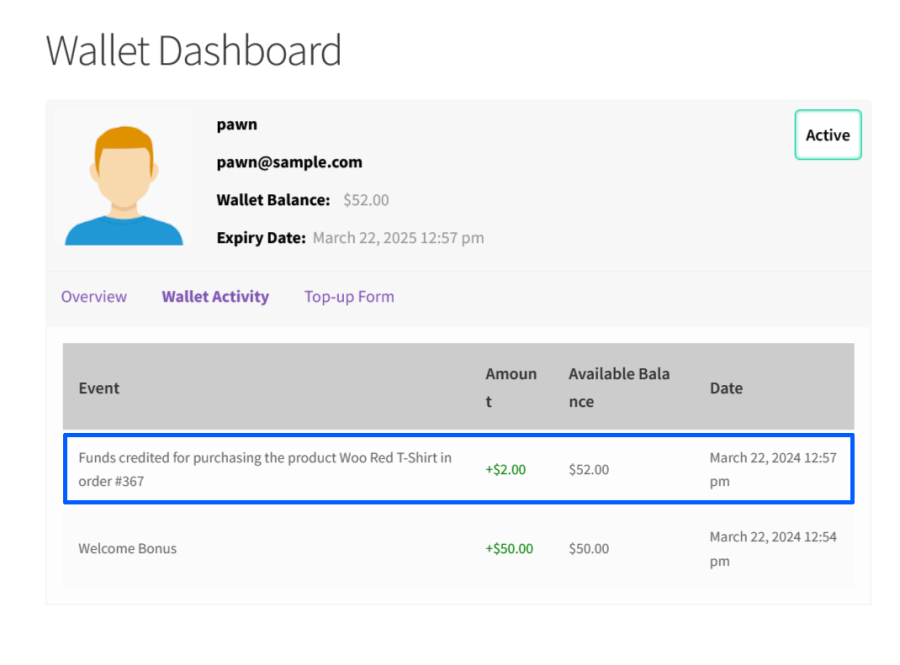
After placing the order, funds will be added to the wallet when the order status reaches processing/completion.
Product purchase reward credited to wallet
Automatic wallet top-up
The wallet auto-top-up module allows its users to automatically top up their wallet when the wallet balance drops below a specified threshold amount.
To set up Auto Top-up, the user will have to access the Auto Top-up menu in the wallet dashboard.
Within the section, based on the configuration, the user will have to select the Auto Recharge amount and the limit amount.
After entering the value, the user will have two options,
They can pay the top-up amount and authorize future automatic top-ups.
Authorize future automatic top-ups without making any payments
Once authorization is complete, funds will be added to the user's account whenever the wallet balance drops below a specified threshold.
Unique features offered in this plugin
Automatic subscription renewal using wallet balance (requires WooCommerce subscriptions)
Automatic Wallet Top-up Using WooCommerce Stripe Payment Gateway
Gift Vouchers Module to generate Gift Vouchers in bulk
Wallet balance with unlimited validity (optional)
Wallet Actions module to issue wallet balances to users for account enrollment
No tax will be charged for recharging the wallet
Wallet balance expiration email reminder
Wallet balance credit for daily login
Wallet balance credit for product analysis
Widget support
Front-end dashboard presentation improvements
Transaction log presentation improvements
Displaying Cron information [Cron Name and Last Update] to user.
Wallet balance displayed in user table
Wallet for WooCommerce helps its users quickly complete a purchase by adding funds to the site and using them for future purchases.










 English (UK)
  Português do Brasil
  Español