
Introduction
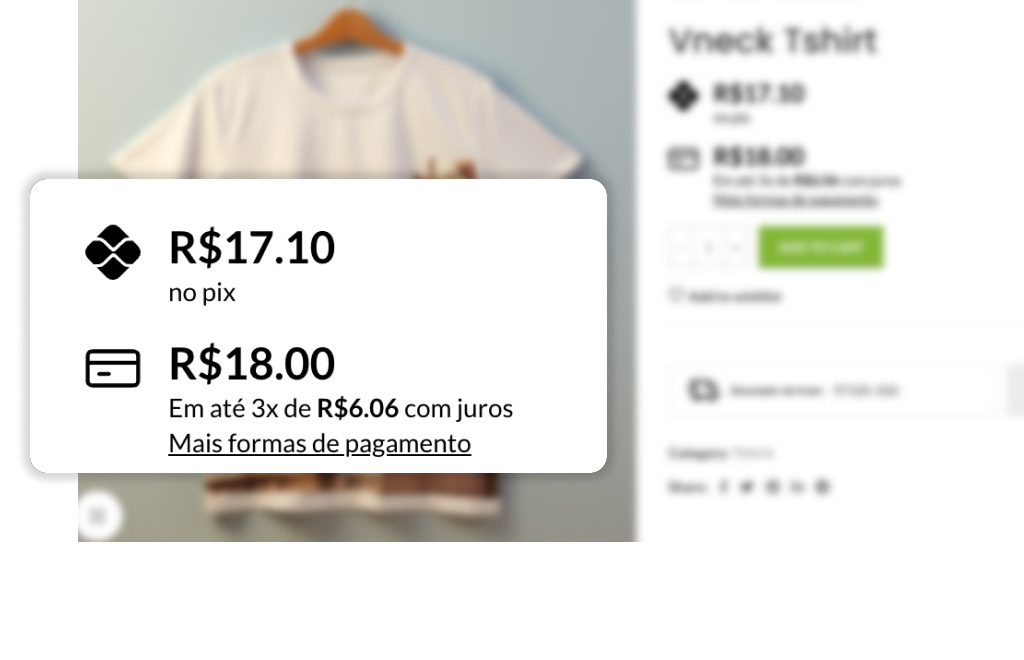
Display installments and cash price Directly displaying content on product pages is one of the easiest ways to reduce checkout queries and increase your e-commerce conversion rate. In this step-by-step guide, you will learn... how to put installments on products in WooCommerce using the Installment Simulator - one plugin This guide displays the installment payment options and the cash price on the product page (and in the listing). It follows the official documentation, and you'll have everything set up in minutes. See where. buy the plugin and how to use the documentation To clear up any doubts.
Table of Contents
Why show installments on the product page?
- TransparencyThe customer can see the monthly cost and the total amount upfront, with no "surprises" at checkout.
- Less abandonmentClear payment information reduces clicks and indecision.
- Aesthetics and performanceThe plugin was designed to be lightweight and customizable (colors, sizes, and spacing).
💡 Important: The Simulator does not change the amount charged at checkout; he It only simulates. The prices displayed on the website. Therefore, Replicate the same rates that your gateway applies in the plugin..
What will you use?
- Installment Simulator Plugin for WooCommerce Purchase/license and gain access to updates.Buy here.)
- Official documentation Installation tutorials, configuration information, interest rates, discounts, and troubleshooting.Access the document here..)
Step-by-step: how to add installments to products
1) Purchase, install, and activate
- Buy the plugin (The plugin is already active, no license required) version GPL.
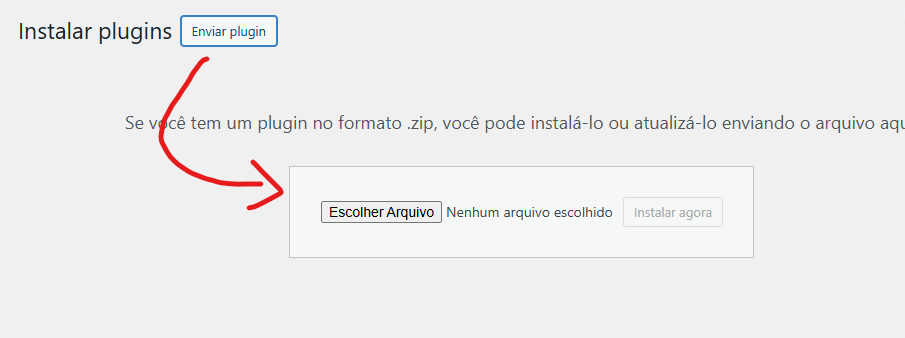
- On WordPress: Plugins → Add new → Submit plugin (.zip) → Install now → Activate.
2) Open the simulator settings
After activation, a specific menu appears:
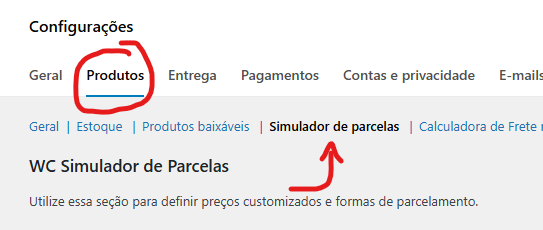
WooCommerce → Settings → Products → Installment SimulatorAll options have help buttons explaining each item.
3) Define the installment rules (interest and display)
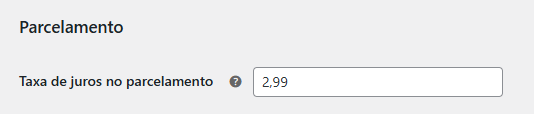
- Repeat the same rates as your gateway. (e.g.: 2x interest-free, 3x with X% am, etc.).
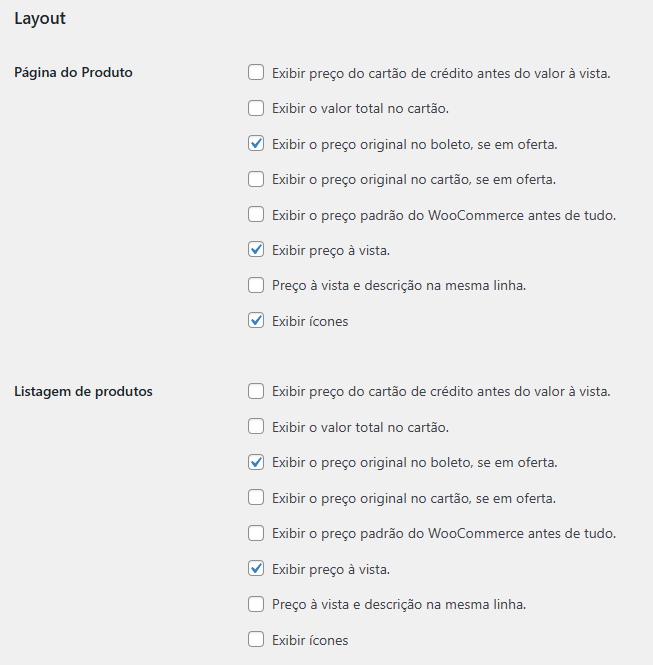
- Adjustment maximum number of installments, display on the product page and display in listing (store/category).
- Remember: it is visual simulationThe person who applies the real interest rate is the gateway no checkout.
4) (Optional) Display cash discount
The plugin displays the simulation of the cash price. For apply For a discount on payments (Pix/boleto) to be applied effectively at checkout, the documentation indicates the use of a dedicated plugin for cash discounts. If you only want a simple discount (fixed or %), there are lightweight alternatives indicated in the documentation.
5) Customize design and behavior
Make your shop window reflect your personality:
- Colors, sizes and spacing from the block of parcels.
- Layout different for product page and for listing (where there is less space).
- Enable/disable the display in product files (categories/store) according to your strategy.
6) Hide the simulator in categories or SKUs (advanced)
It needs do not show Installments within a specific category (e.g., subscriptions) or within specific SKUs?
The documentation offers advanced snippets (intermediate level) to hide by product type, SKU or categoryNote that this does not disable installment payments at checkout; only hides the simulation on the page.
Best practice tips (SEO + conversion)
- Consistencykeep the same rules from the gateway to avoid value discrepancies.
- Social proofinclude testimonials Keep the price close to reduce objections.
- Mobile firstTest the readability of the block of parcels on small screens.
- High-ticket products: highlight parcels no interest (when possible) to attract clicks.
Frequently Asked Questions
Does the simulator change the amount charged at checkout?
No. He only displays The simulation is on the website; the person who charges is... payment gatewayKeep the rates identical between the plugin and the gateway.
Do I need a license?
For the GPL version, there's no need for this. It comes already activated and you can install it on as many websites as you want without recurring charges. What will change is that you won't have official support directly from the developer. But if you want to pay an annual fee for each website and need official support, you can purchase it directly from the developer's website.
Where can I buy the plugin?
You can Buy the Installment Simulator for WooCommerce on this page.
Where is the documentation?
THE Official documentation for the Installment Simulator It's here. (with guides on "Getting Started", "Interest Rates", "Cash Discount", "Hide by Category" and more).
Quick checklist
- Rates and number of installments Configured according to your gateway.
- Display linked on the product page and, if desired, on listing.
- (Optional) Cash discount displayed and, if necessary, applied at checkout with the appropriate plugin.
Conclusion
With the Installment Simulatoryou display installment payment and cash price clearly improves experience and increases trust from the customer even before the shopping cart.
Ready to set up? Buy the plugin here and follow official documentation to delve deeper into the features, including hiding by category and optimizing cash discounts.
Observation: This tutorial follows the official documentation and highlights that the simulator... It does not change values at checkout.serving for display on the website; therefore, keep the same fees from your payment gateway.



 English (UK)
  Português do Brasil
  Español